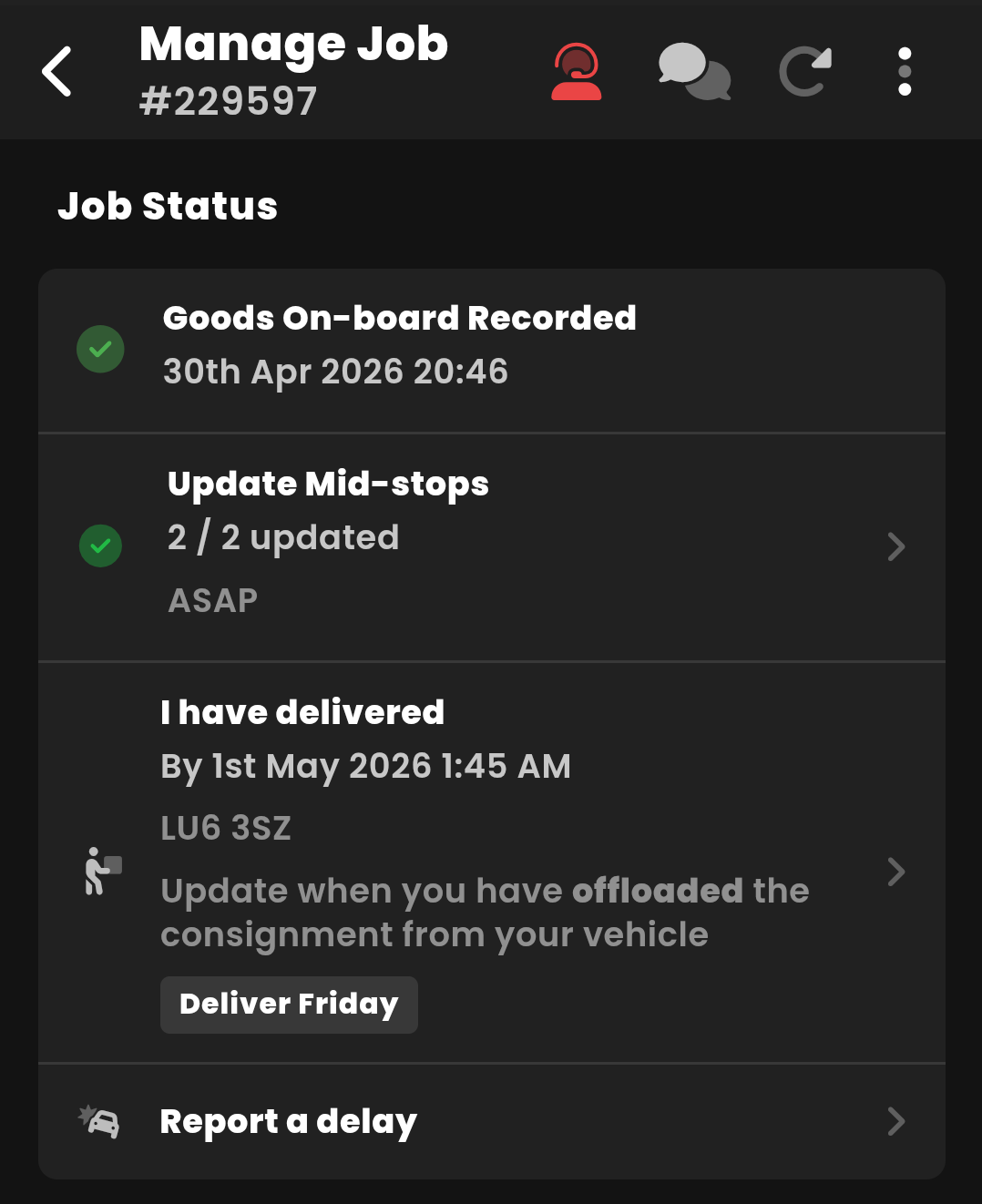
🚨Important: Do not complete the "I have delivered" milestone until all mid-stops are updated. This closes the job and you will not be able to update any remaining stops.🚨
When you are allocated to a multi-drop job, the Manage Job screen will still show the usual timeline, including I have collected and I have delivered.
For multi-drop jobs, you will also see an Update Mid-stops section between collection and final delivery. This is where you need to update any additional collections or deliveries that happen between the first collection point and the final delivery point.
Use this section in the same way you would update the main collection or delivery status. As you complete each mid-stop, open Update Mid-stops and mark the relevant stop as updated.
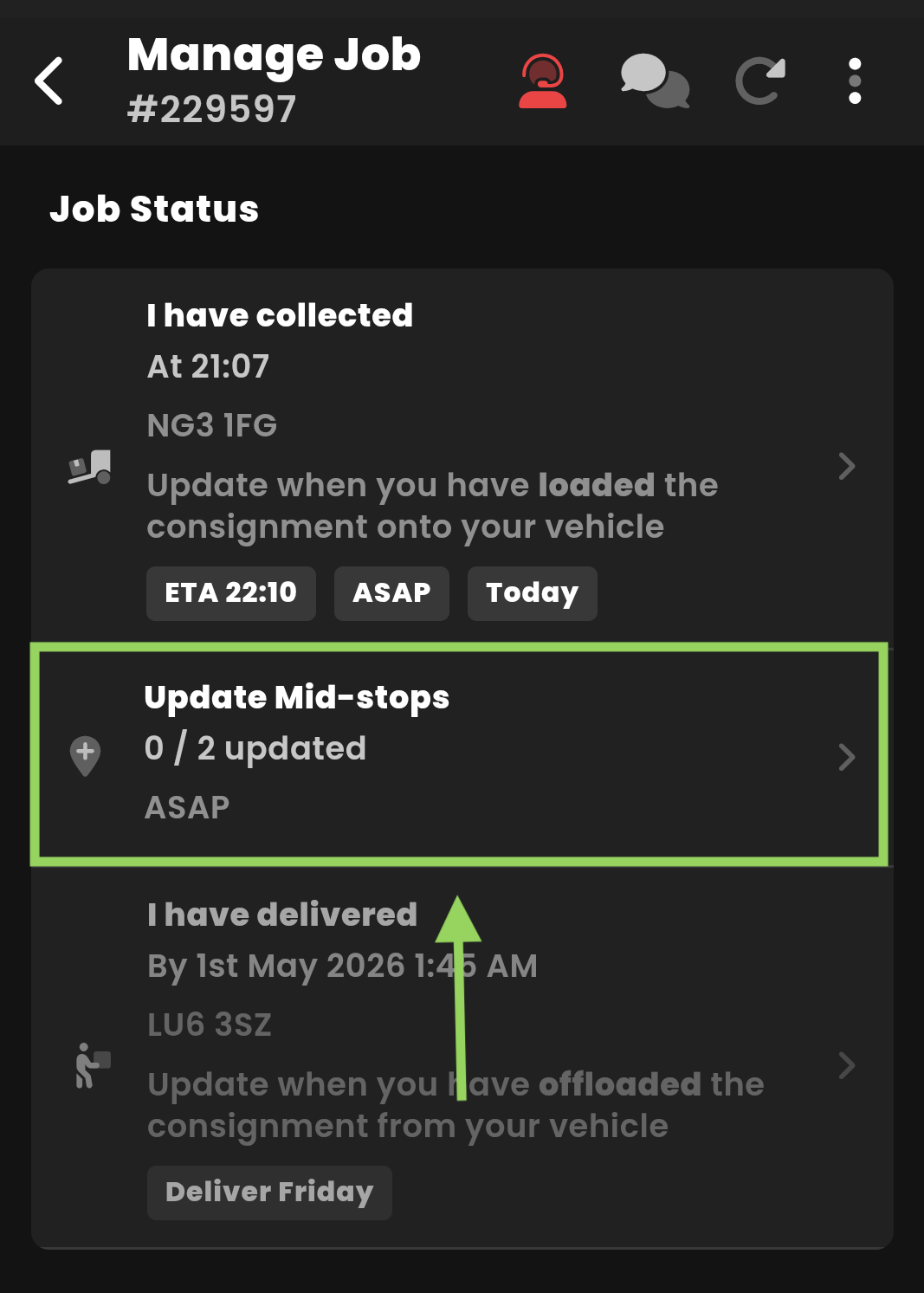
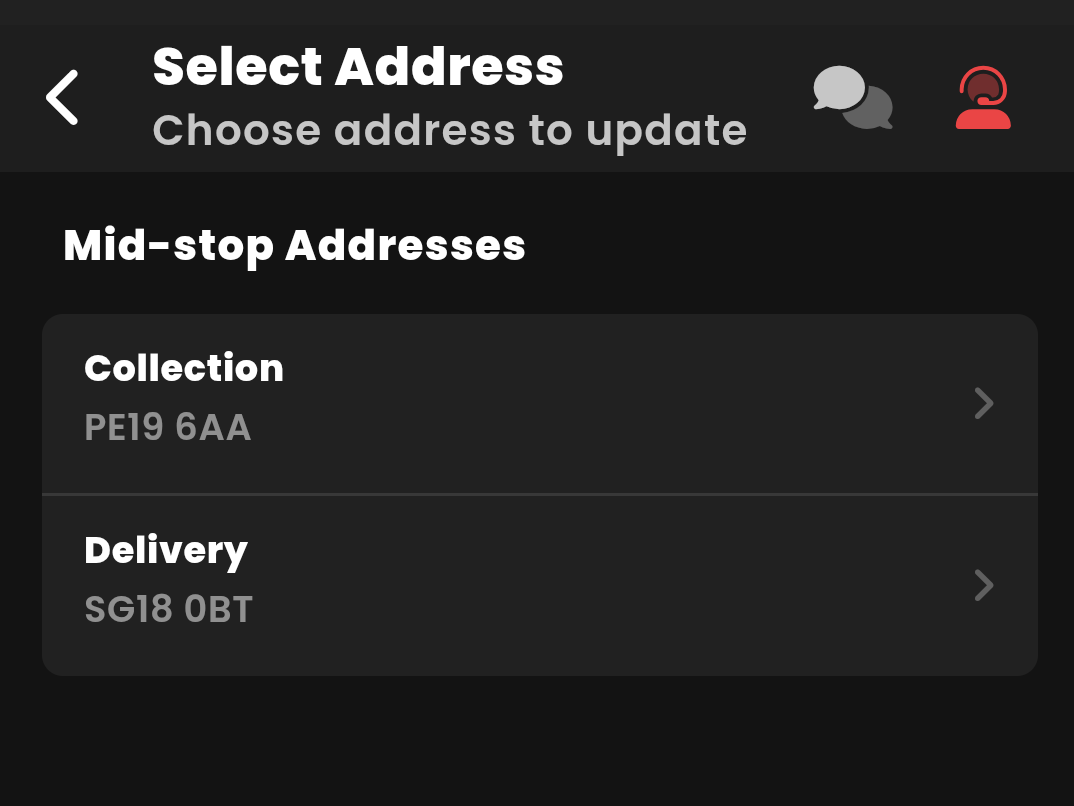
When you tap Update Mid-stops, you will see a list of the mid-stop addresses linked to the job.
Each mid-stop will show whether it is a Collection or Delivery, along with the postcode & address. When you arrive at one of these addresses, tap the relevant mid-stop to update it.
For example, if you arrive at a mid-stop collection point, tap the Collection address and follow the update process. If you arrive at a mid-stop delivery point, tap the Delivery address and update it in the same way.
You should update each mid-stop as you complete it, so the job progress stays accurate throughout the route.
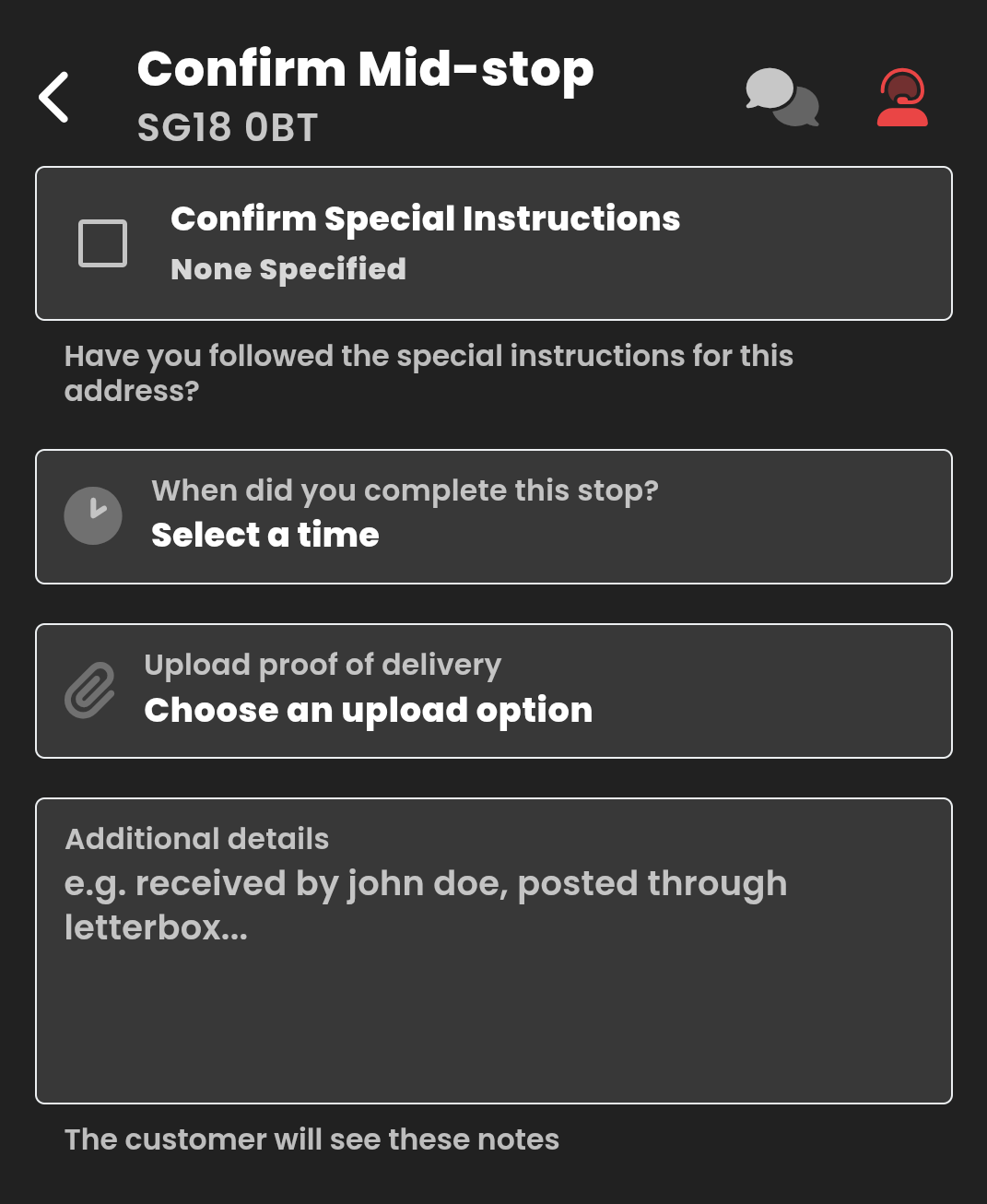
When you select a mid-stop, you will be asked to confirm the stop in a similar way to the usual I have collected or I have delivered update.
You will need to:
- Confirm that any special instructions for that address have been followed
- Select the time you completed the collection or delivery
- Upload proof, such as a photo of the goods at collection or delivery
- For collection, confirm the consignment description matches
- Add any relevant notes, such as who received the goods or where they were left
Please remember that any notes you add may be visible to the customer, so keep them clear, accurate and professional.
See this article for more information on submitting Goods on board and Proof of delivery: https://courierexpert.crunch.help/en/driver-app/managing-jobs
Once a mid-stop has been confirmed, you will return to the mid-stop address list.
The updated stop will show a green check mark, confirming that it has been completed. You will also see an Undo button next to the stop, which can be used if the stop was updated by mistake.
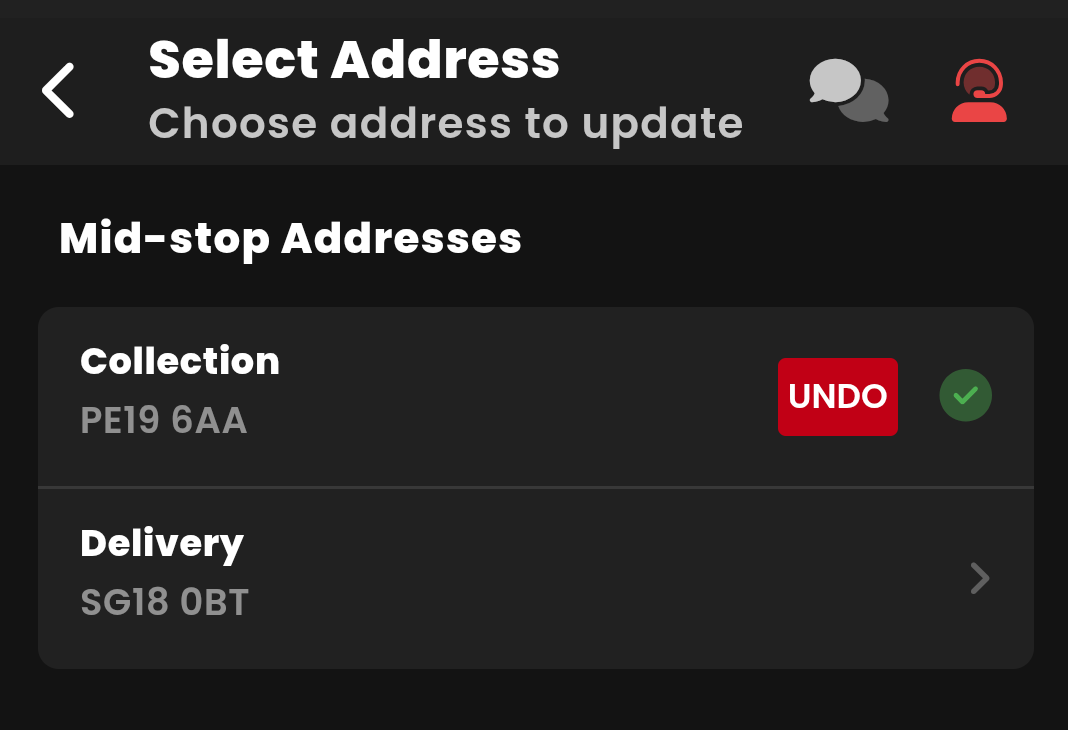
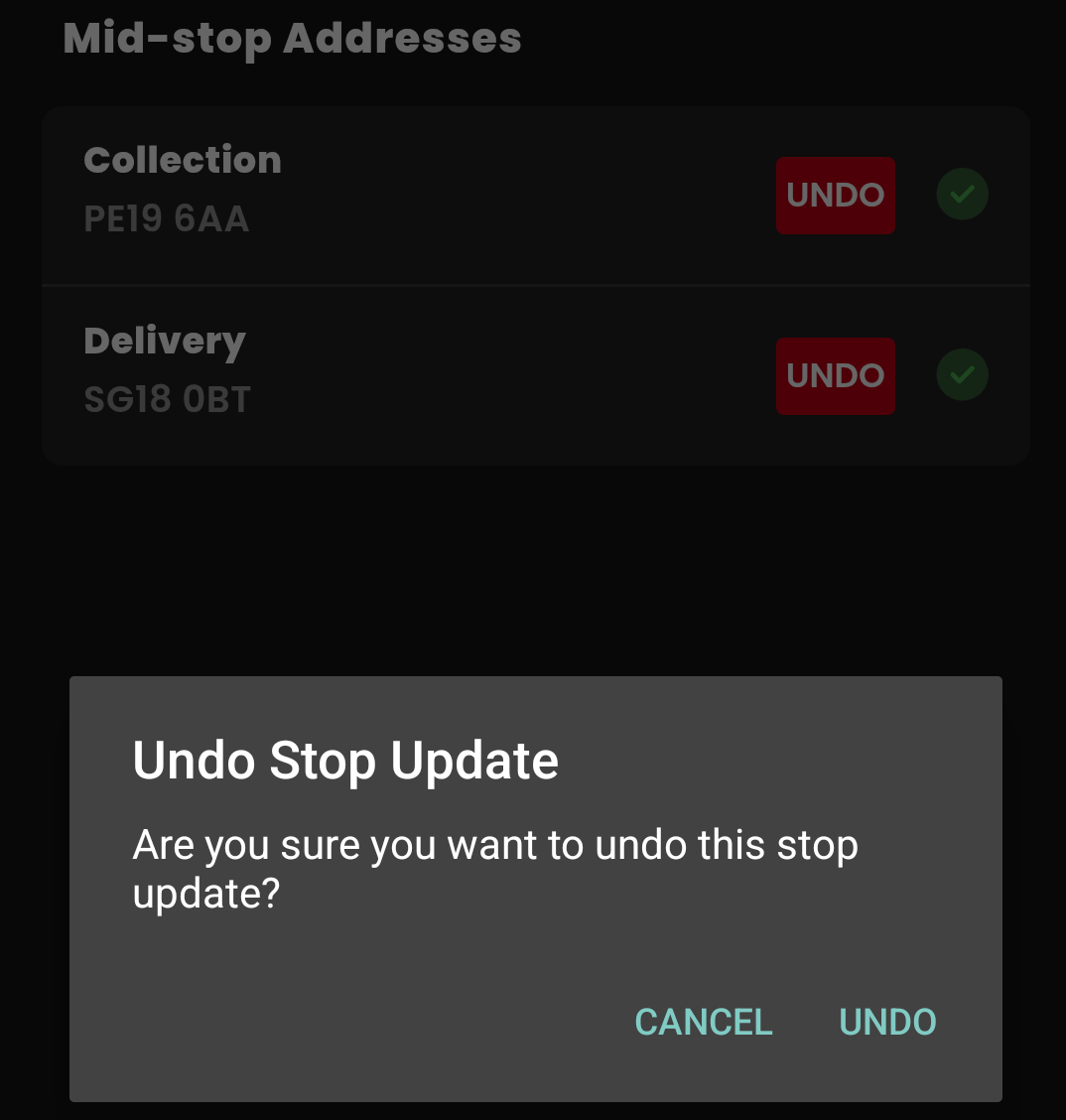
If you need to undo or resubmit a mid-stop update, tap the Undo button next to the relevant stop.
You will be asked to confirm that you want to undo the stop update. Once confirmed, the stop will become available again, allowing you to update it with the correct details.
On the main Manage Job screen, the Update Mid-stops section will show a tally of how many mid-stops have been updated, for example 2 / 2 updated.
Please make sure all required mid-stops are updated before you mark the job as delivered.
Important: If you complete "I have delivered" milestone before completing the mid-stop updates, the job will be closed. Once the job is closed, you will no longer be able to update the remaining mid-stops yourself.
If you completed the job in a different order, or you are unsure what to update next, please contact us before marking the job as delivered so we can advise you.