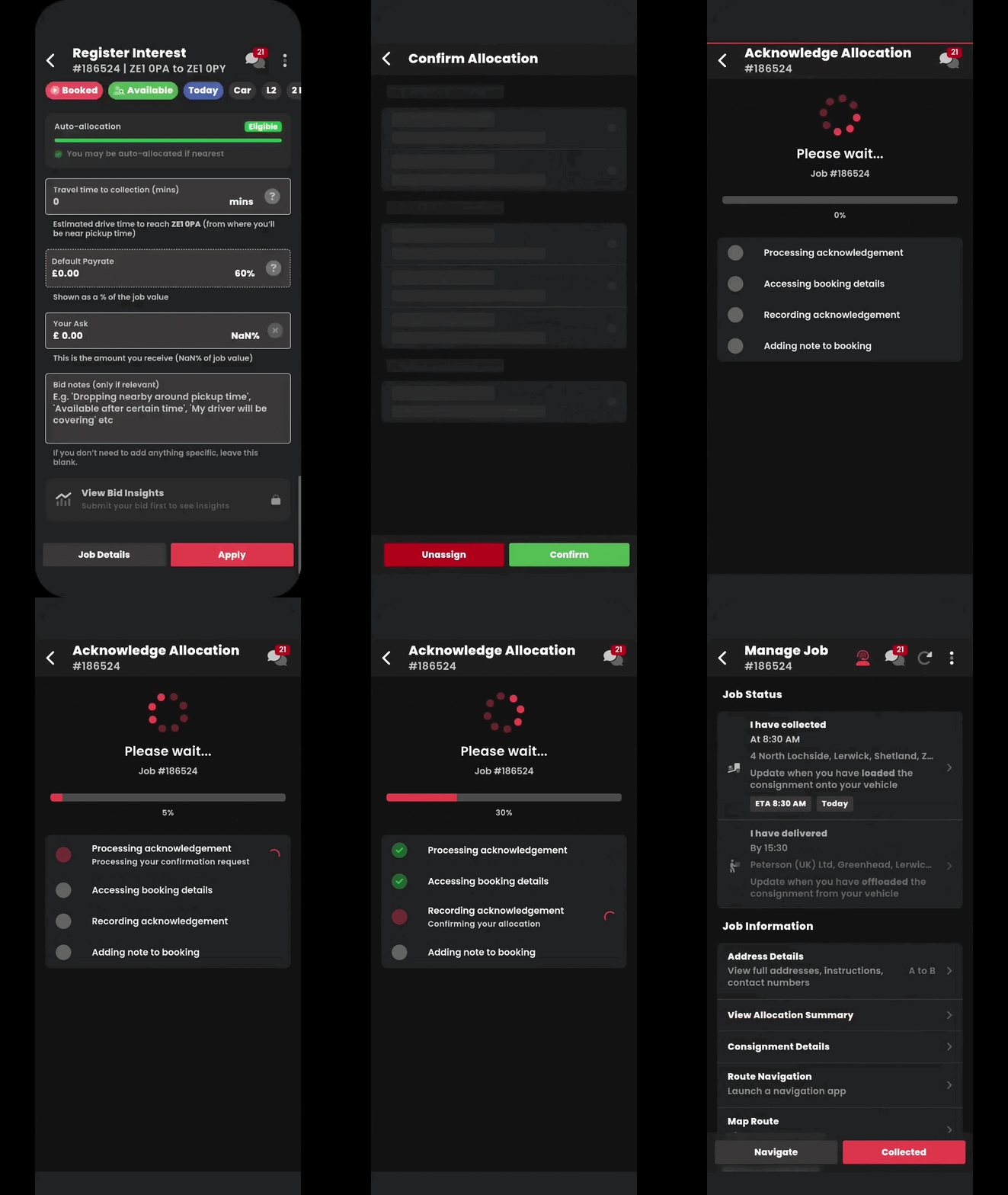
⚠️ Please note: This functionality will soon be removed from the app. Couriers can now unassign themselves directly in the app if they are no longer available for an allocated job.
Can't see this in the app? Make sure your app is up-to-date:
iOS: Update your iOS app
Android: Update your android app
Also find out how to unassign yourself from a job: How to unassign yourself from a job
There are two scenario where you can be auto-allocated to a job:
- You registered your interest In the quote stage
- In this scenario, you may be auto-allocated at a later stage, after the customer makes payment.
- You will be notified through SMS and Email
- You registered your interest after the job has been booked
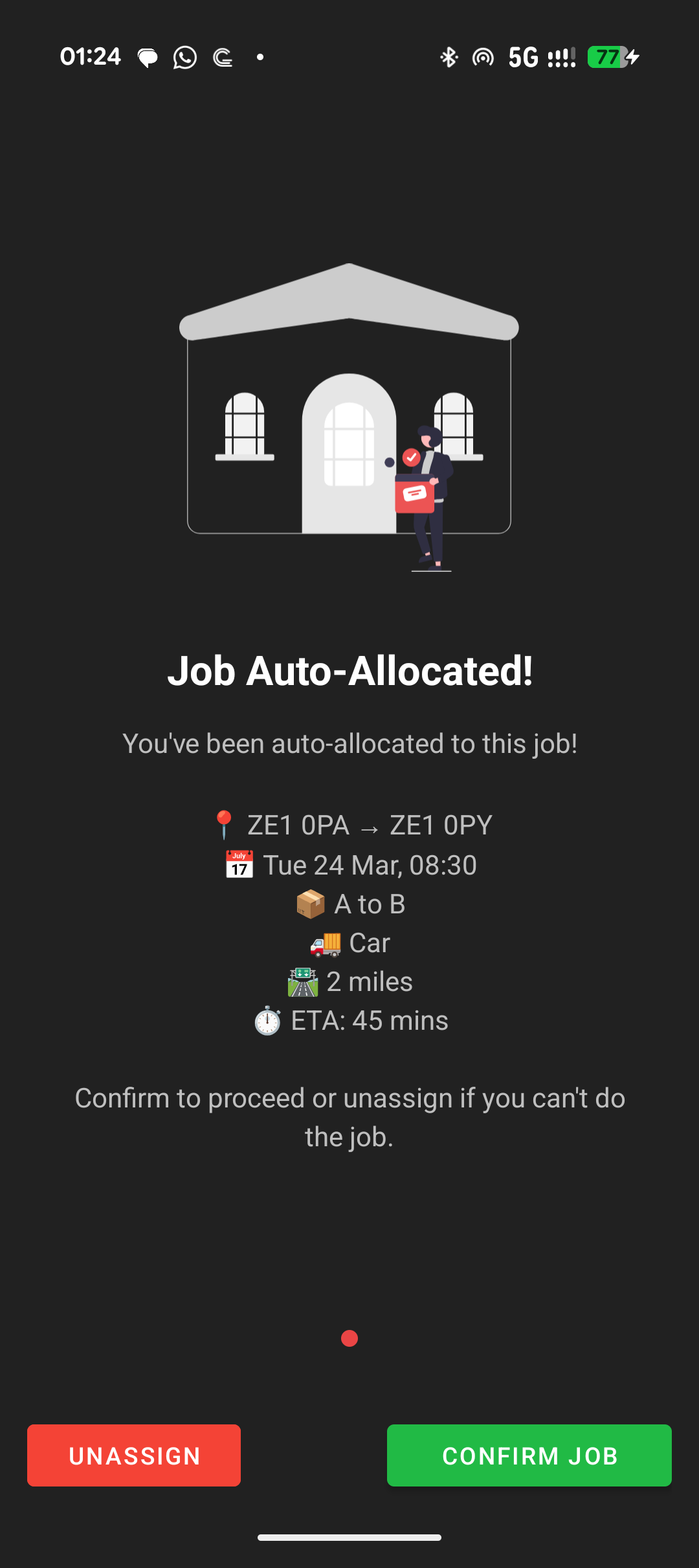
- In this scenario, you will receive immediate confirmation In the app as seen below
- In this scenario, you will receive immediate confirmation In the app as seen below
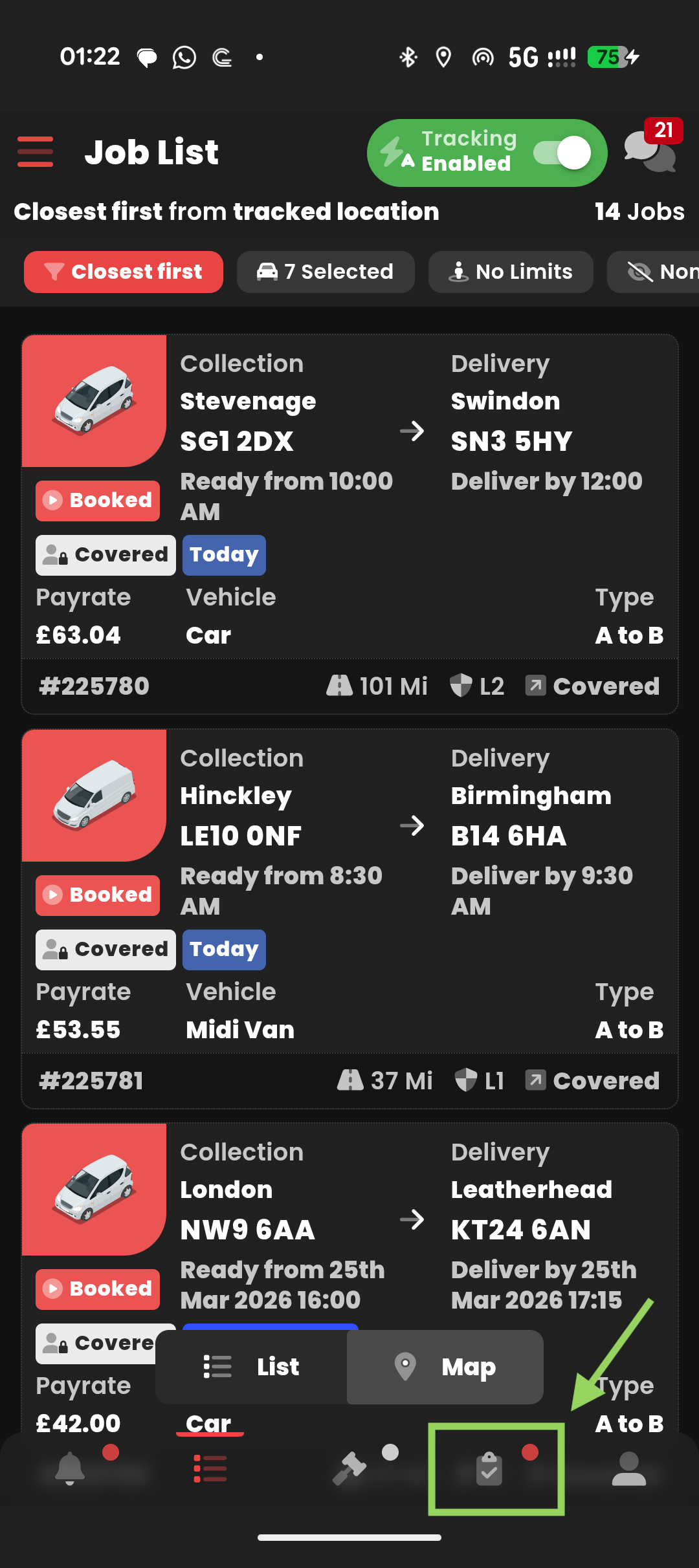
1) Select "My Jobs" as shown In the screenshot below
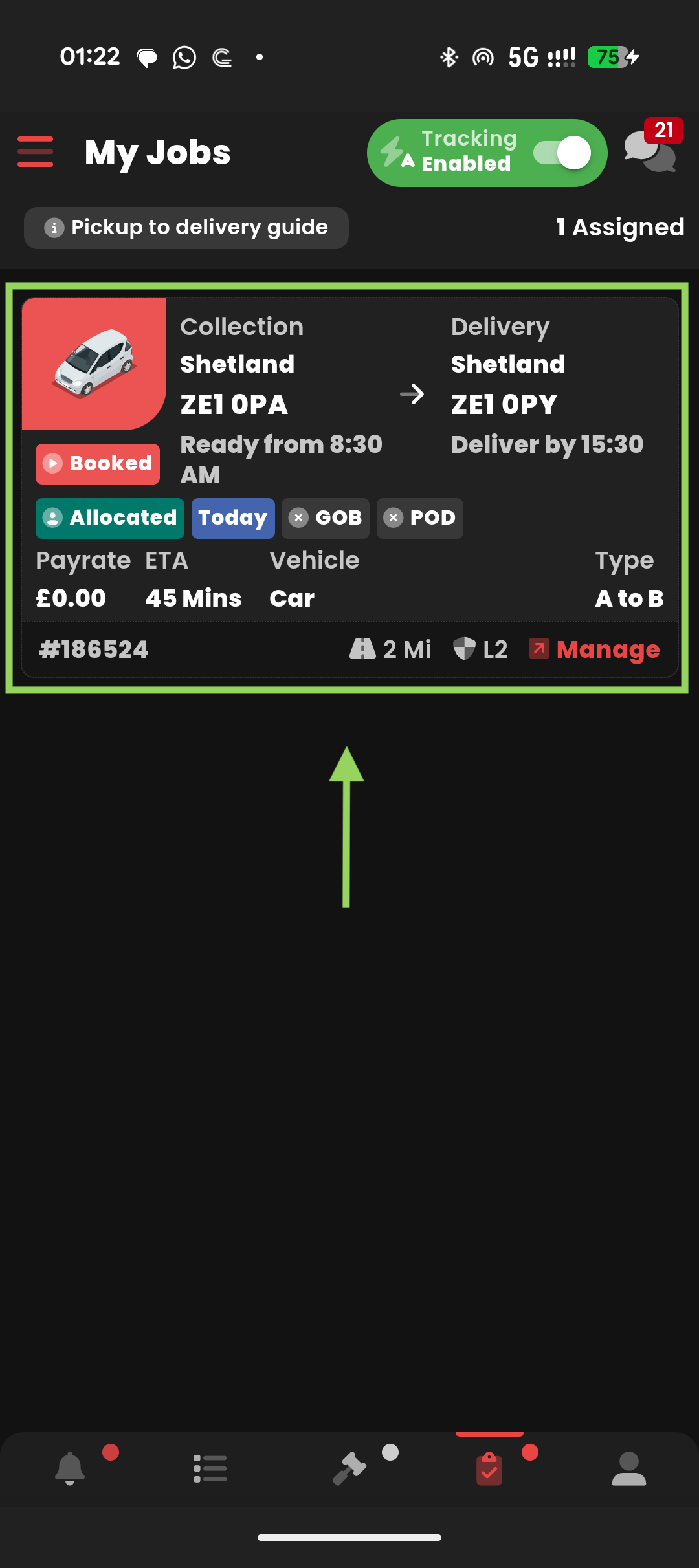
2) Find the job you're allocated to, click anywhere on the job.
3) Tap on "Confirm Auto-allocation"
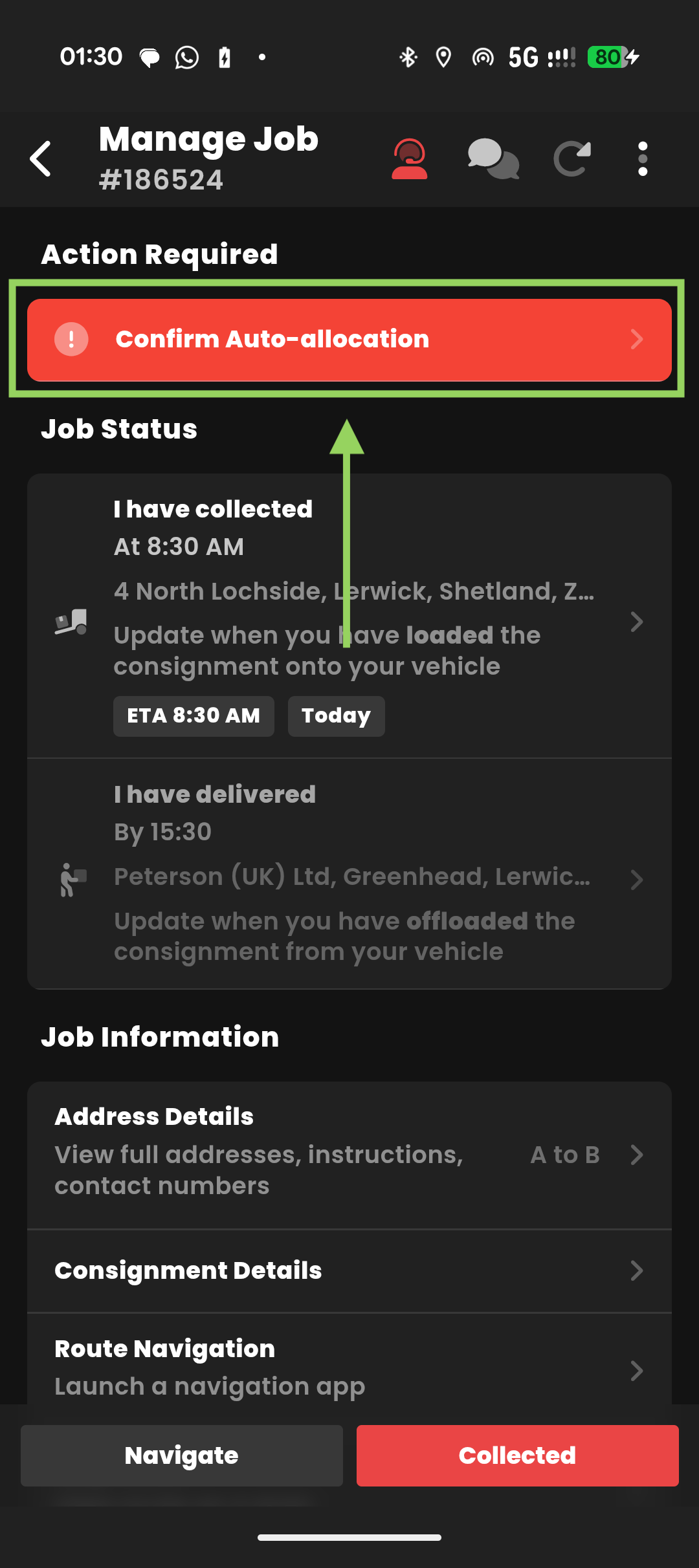
4) Review the allocation summary, then tap "Confirm"
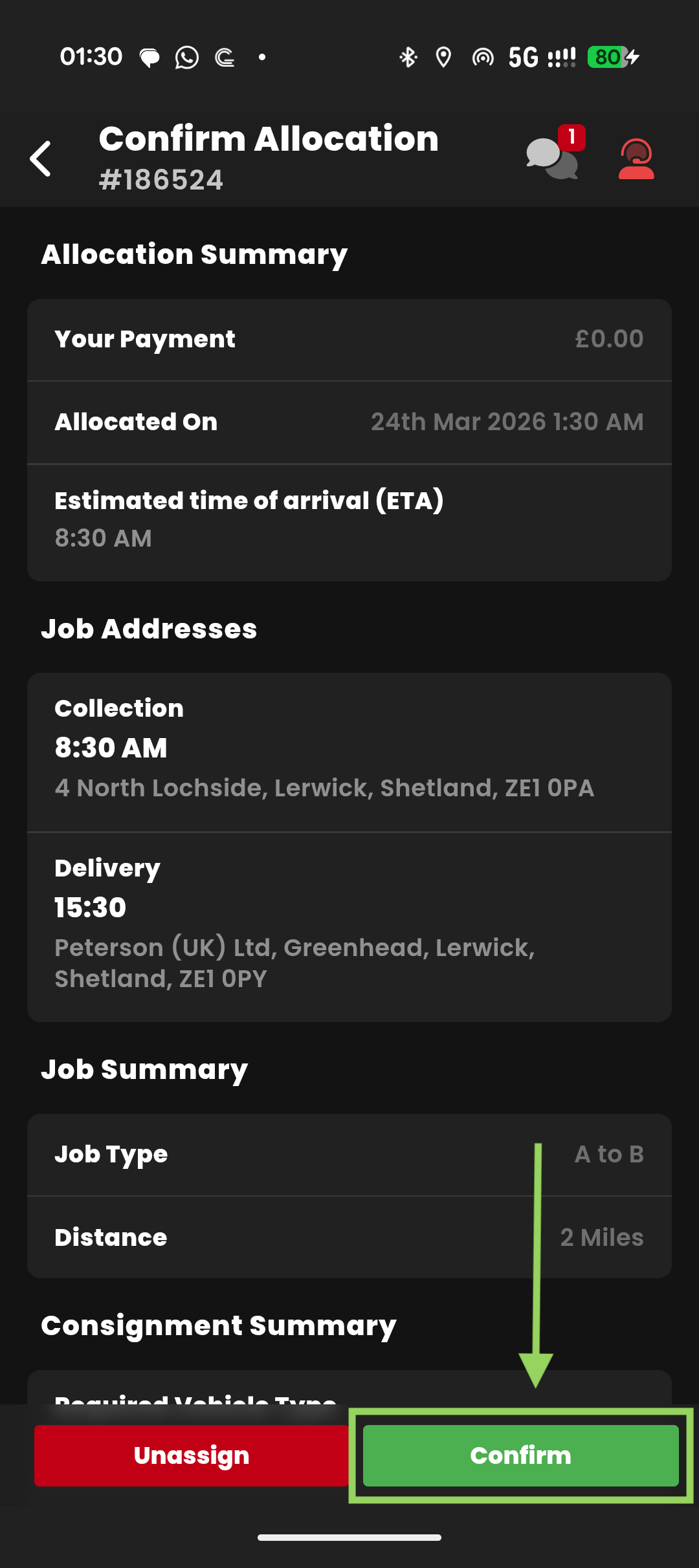
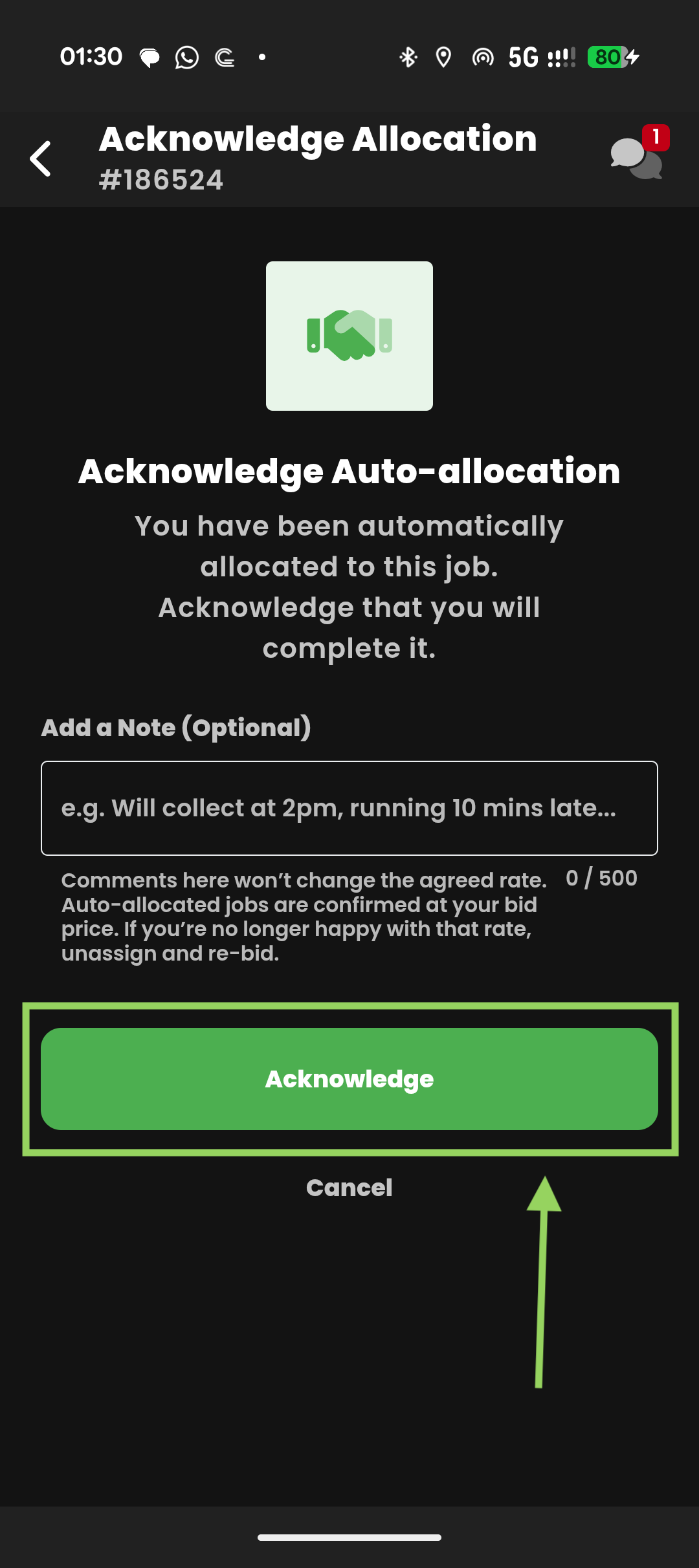
5) Feel free to leave any relevant comments for our allocation team, to confirm, select "Acknowledge"
This may take a few moments to confirm.
See an example of the process below: