Some higher-value courier jobs on our platform require Level 2 clearance. To qualify for these jobs, you’ll need to provide your own Goods in Transit (GIT) insurance with a cover limit of at least £10,000.
Level 1 couriers are covered automatically under our blanket GIT policy for standard work.
Level 2 couriers, however, must upload their own insurance before they can apply for certain higher-value jobs.
Why Level 2 Jobs Require Your Own GIT Insurance
Level 2 jobs usually involve higher-value items or specialist goods. Because of this, couriers must have:
-
Their own Goods in Transit insurance
-
A minimum cover limit of £10,000
-
A current, valid policy schedule or cover note
If you try to apply for a Level 2 job without an approved GIT policy, you’ll see a prompt explaining that Level 2 access is required. This is your indicator that you need to upload your insurance.
Below is a step-by-step guide on how to upload your GIT insurance through the app and get approved quickly.
Step 1 — Attempting to Apply for a Level 2 Job
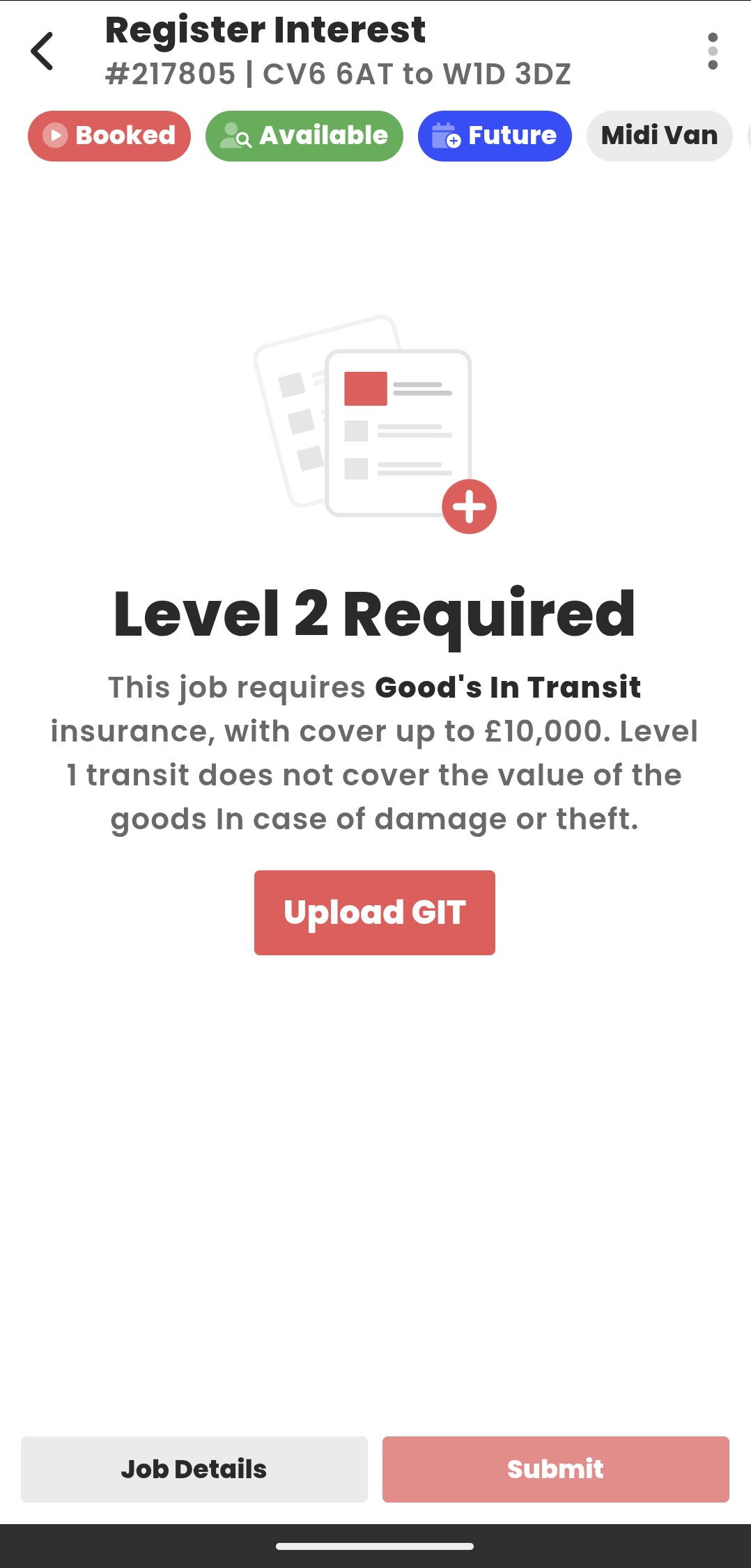
When you select a Level 2 job from the job list, the app will notify you that Level 2 access is required.
You’ll see a message explaining:
-
Why GIT insurance is needed
-
That Level 1 insurance does not cover the value of goods for this job
-
A button to Upload GIT
Tap Upload GIT to begin the process.
Step 2 — Go to Your Account Settings
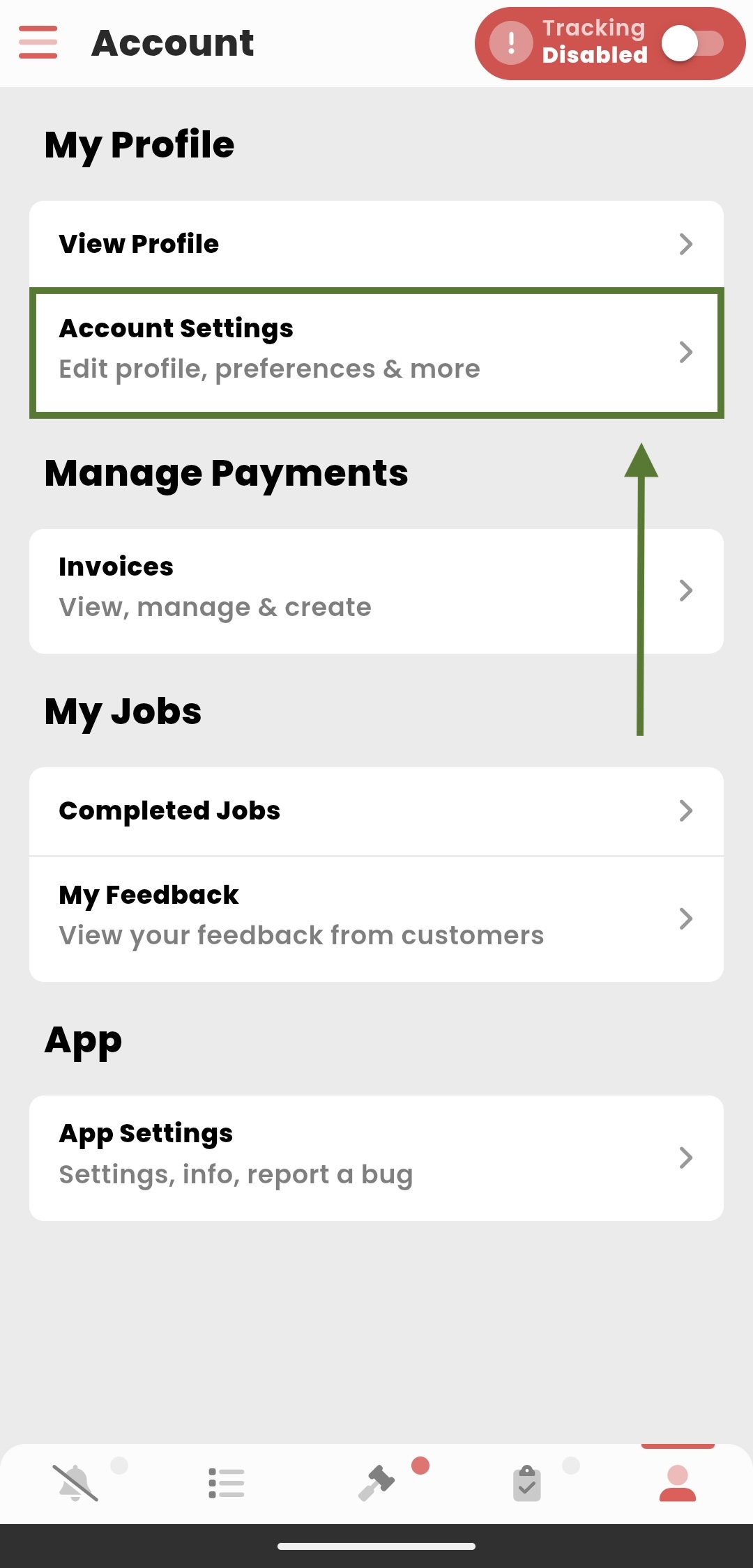
If you prefer to upload your insurance without navigating from the job listing:
-
Open the Account tab
-
Tap Account Settings
This is where you’ll find all insurance-related options.
Step 3 — Select “Upgrade to Level 2”
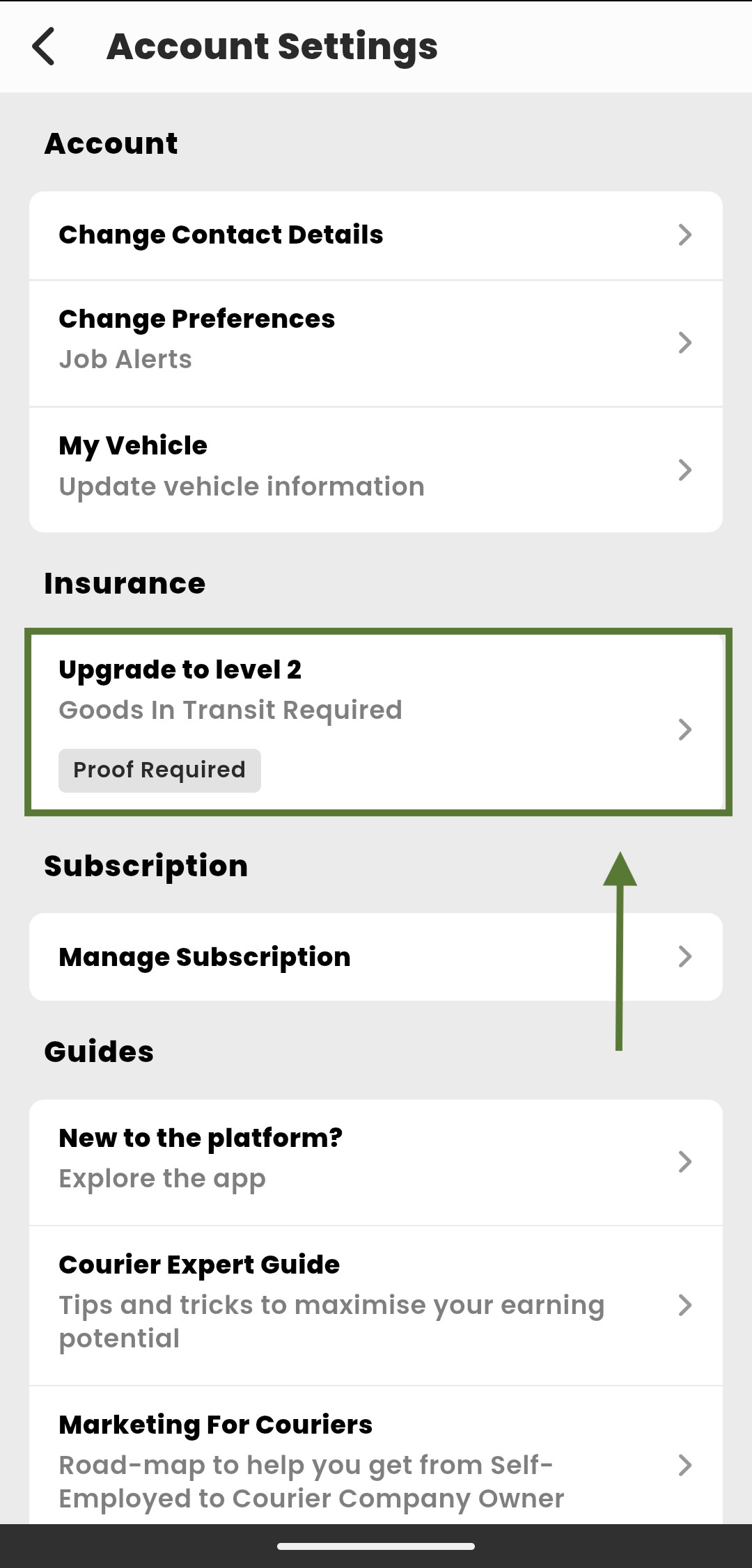
Under the Insurance section, you’ll see:
-
Upgrade to Level 2 – Goods In Transit Required
-
A note saying Proof Required
- If you're updating your GIT, it'll be labeled "Goods In Transit" instead, alongside an indicator advising you to update If our current records are expired or close to expiring.
Tap this to proceed.
Step 4 — Upload a New Insurance Document
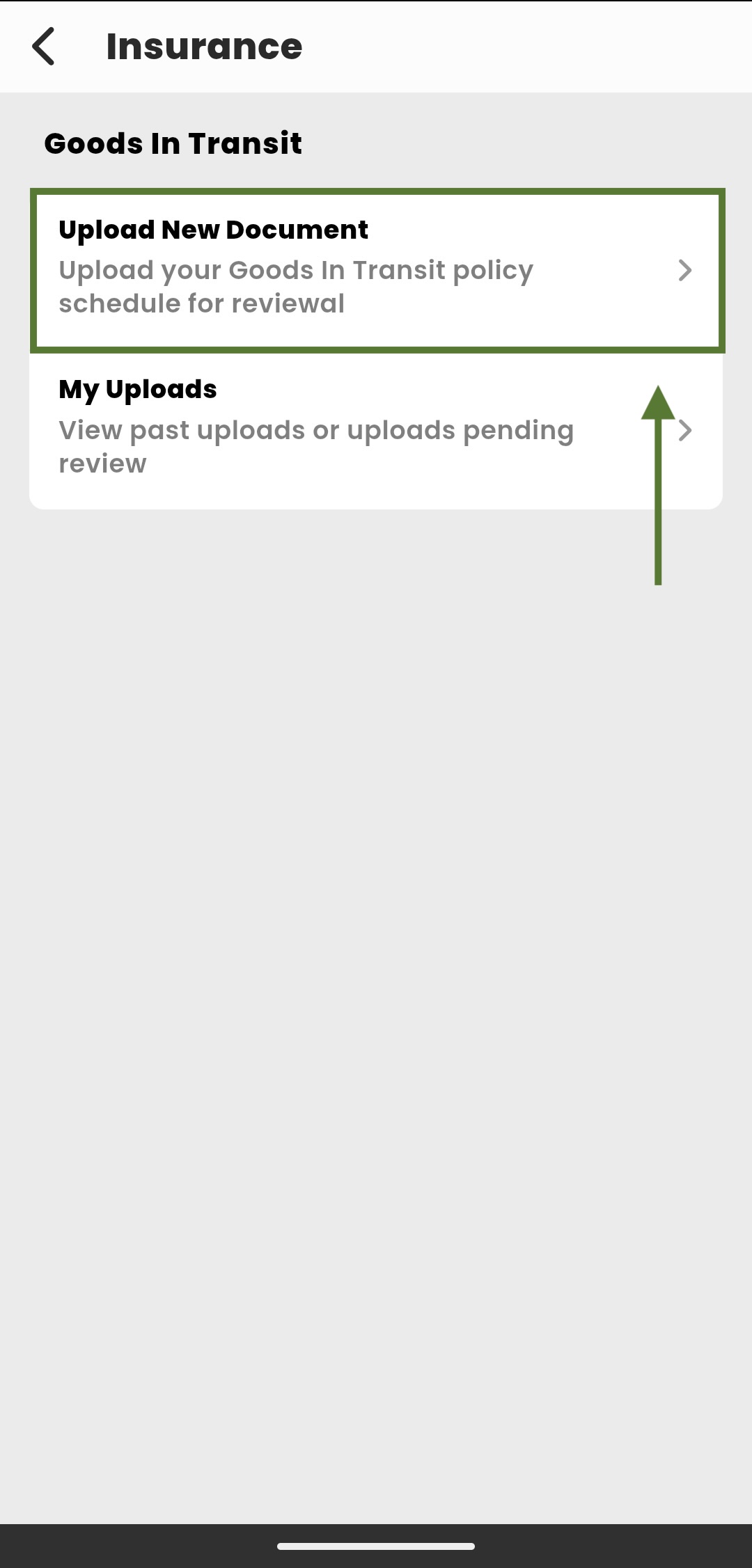
Inside the Goods In Transit section:
-
Tap Upload New Document
-
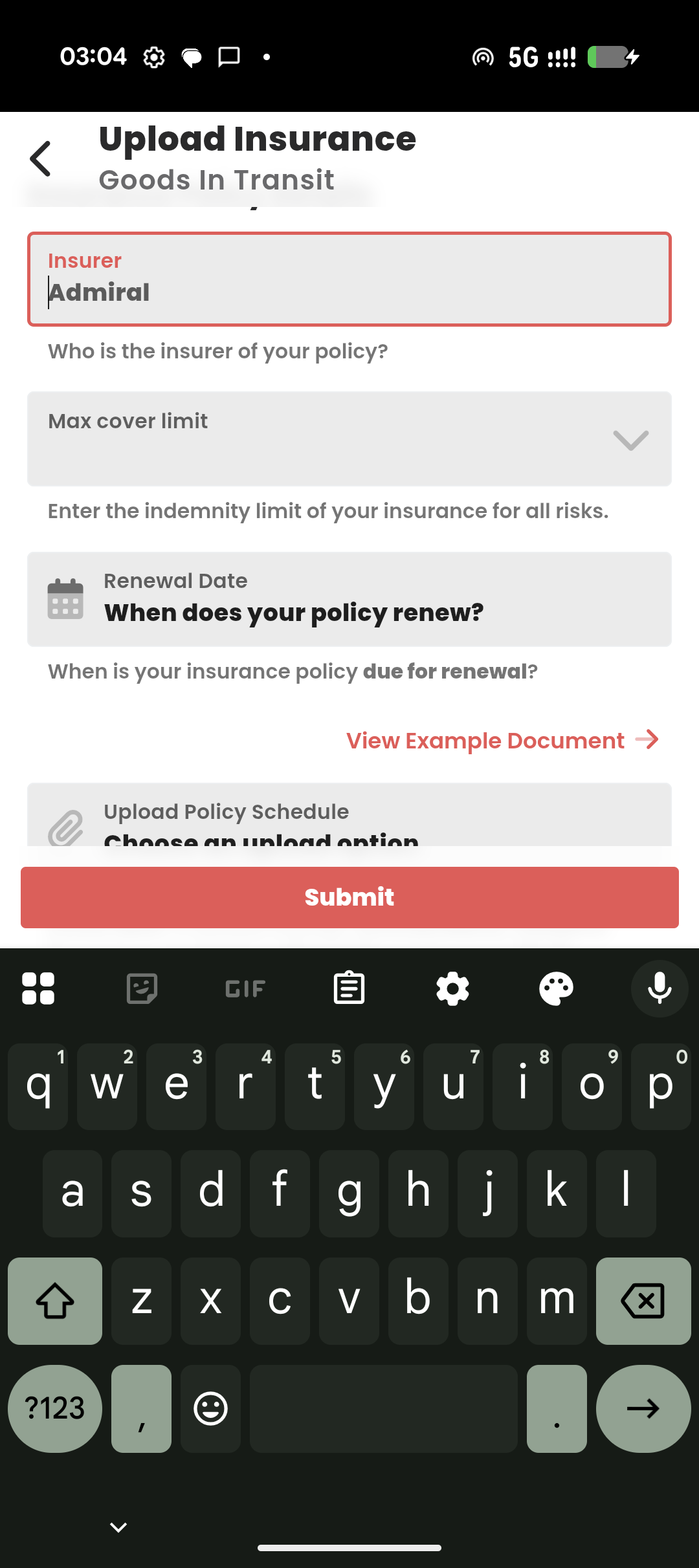
Fill in the required details:
-
Insurer name
-
Maximum cover limit
-
Policy renewal date (Of your newest policy, do not enter the date of your expired policy)
-
-
Upload your policy schedule or cover note (PDF preferred)
There’s also an example document available if you want to check what a valid upload should include.
Your document must show:
-
The insured person/company
-
Period of insurance
-
Cover amount / event limit
-
Goods in Transit explicitly listed
Once finished, tap Submit.
Step 5 — View Your Past Uploads
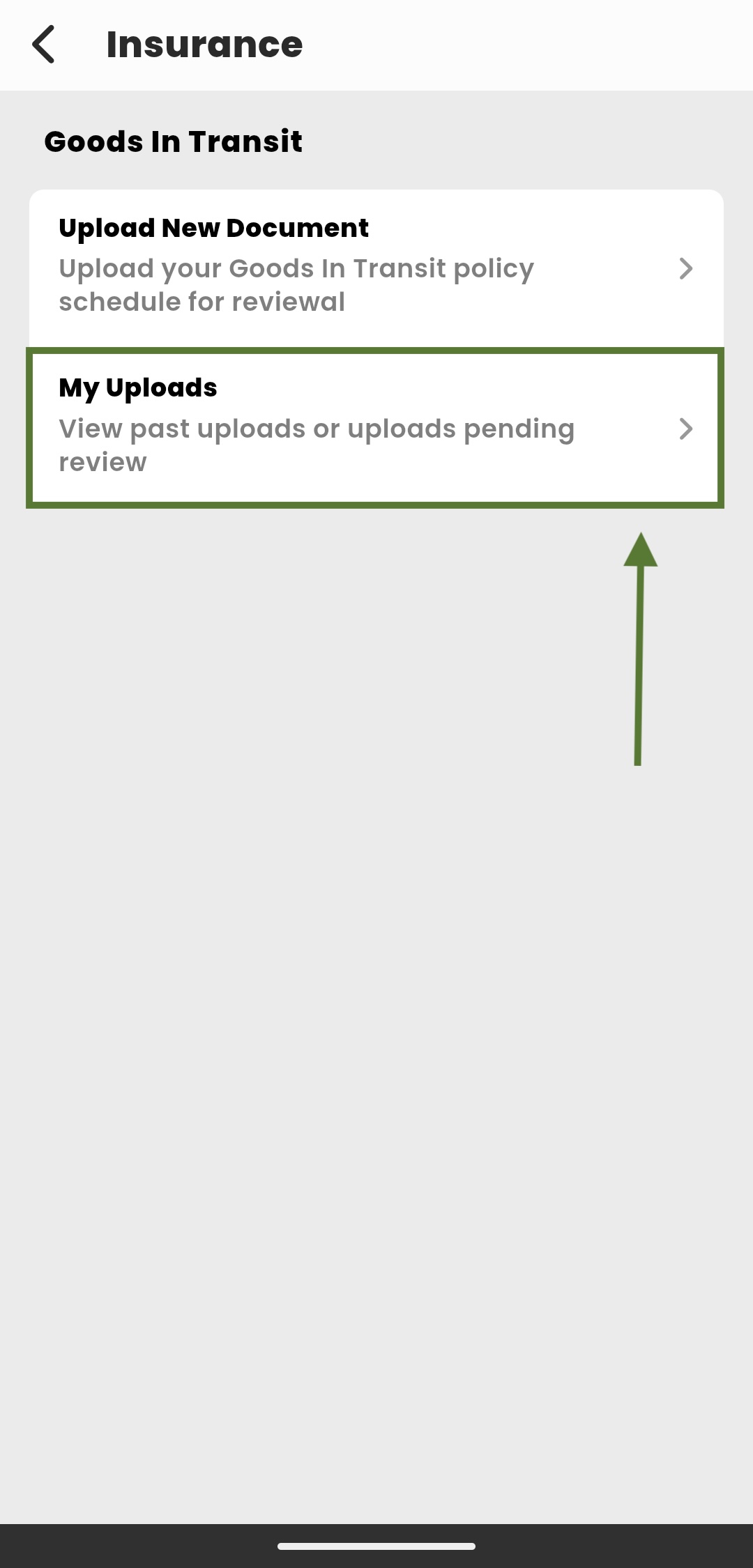
To monitor the status of your insurance:
-
Return to Goods In Transit
-
Tap My Uploads
Here you’ll see all previous uploads, including pending and approved documents.
Step 6 — Check Approval or Feedback
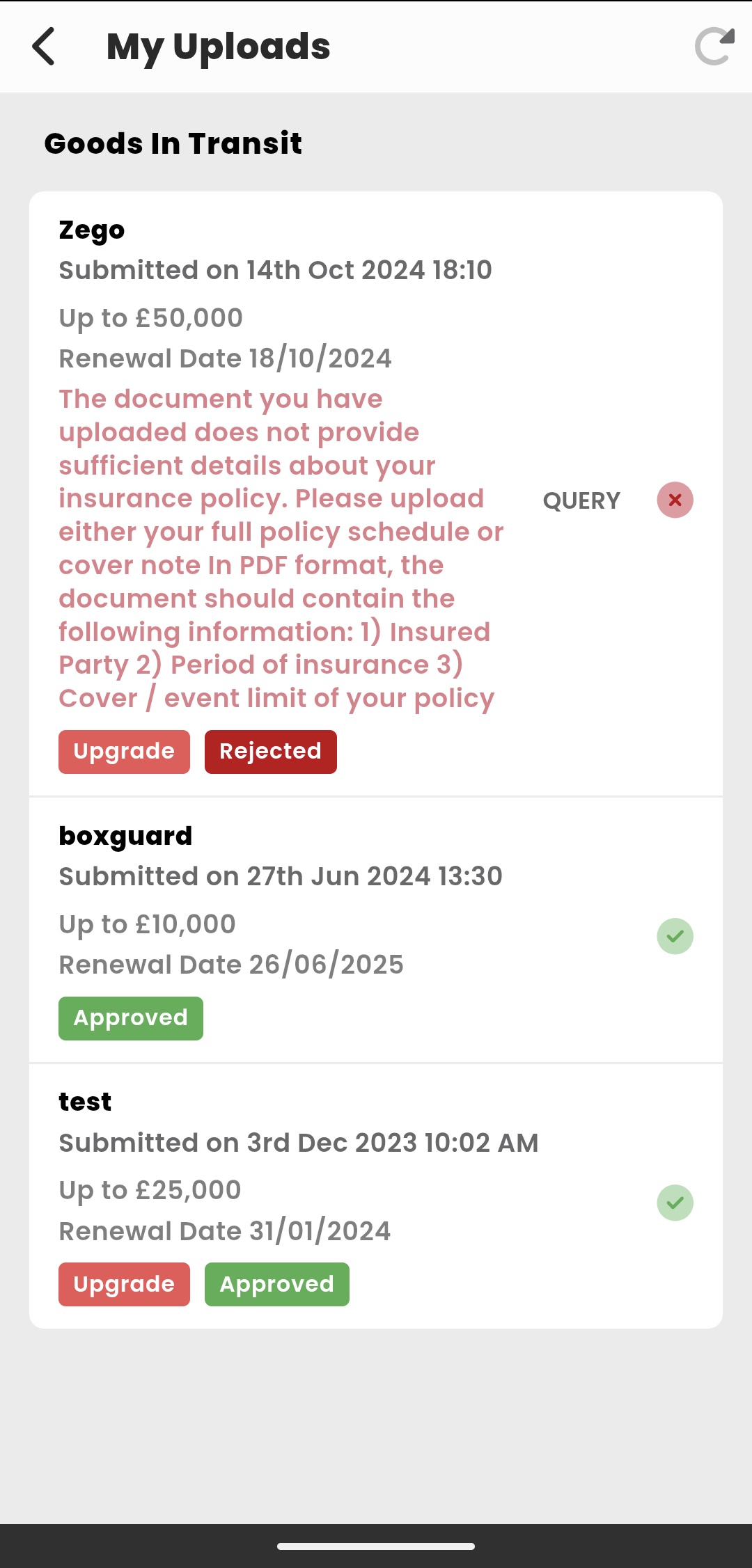
Each upload will show one of the following:
✅ Approved
Your policy has been reviewed and accepted.
You now have Level 2 access and can apply for Level 2 jobs immediately.
❌ Rejected / Query
You’ll see a message explaining why the document didn’t meet requirements — for example:
-
Missing policy schedule
-
No expiry date shown
-
Cover amount unclear
-
GIT not specified
-
Wrong document type (e.g., invoice instead of policy)
If rejected, simply upload a corrected or clearer file.
Tips for a Fast Approval
-
Upload a PDF whenever possible
-
Ensure your name matches your courier account
-
Make sure the cover limit is clearly shown
-
Check that Goods in Transit is specifically mentioned
-
Ensure the entire document is visible and readable
Most approvals are completed quickly if the document contains all required information.
You’re Now Ready for Level 2 Work
Once your GIT insurance is approved, you’ll instantly unlock access to higher-value Level 2 jobs on the platform.
If you experience any issues or have questions about what qualifies as a valid document, please email support@courierexpert.co.uk
